All in One SEO is a WordPress plugin that centralizes core SEO tasks.
If you want search growth without juggling many tools, all in one seo gives you one dashboard for strategy and control. I have managed large blogs, local sites, and stores with this plugin and others. In this guide, I share what works, what to avoid, and how to get the most from all in one seo.
What Is All in One SEO?
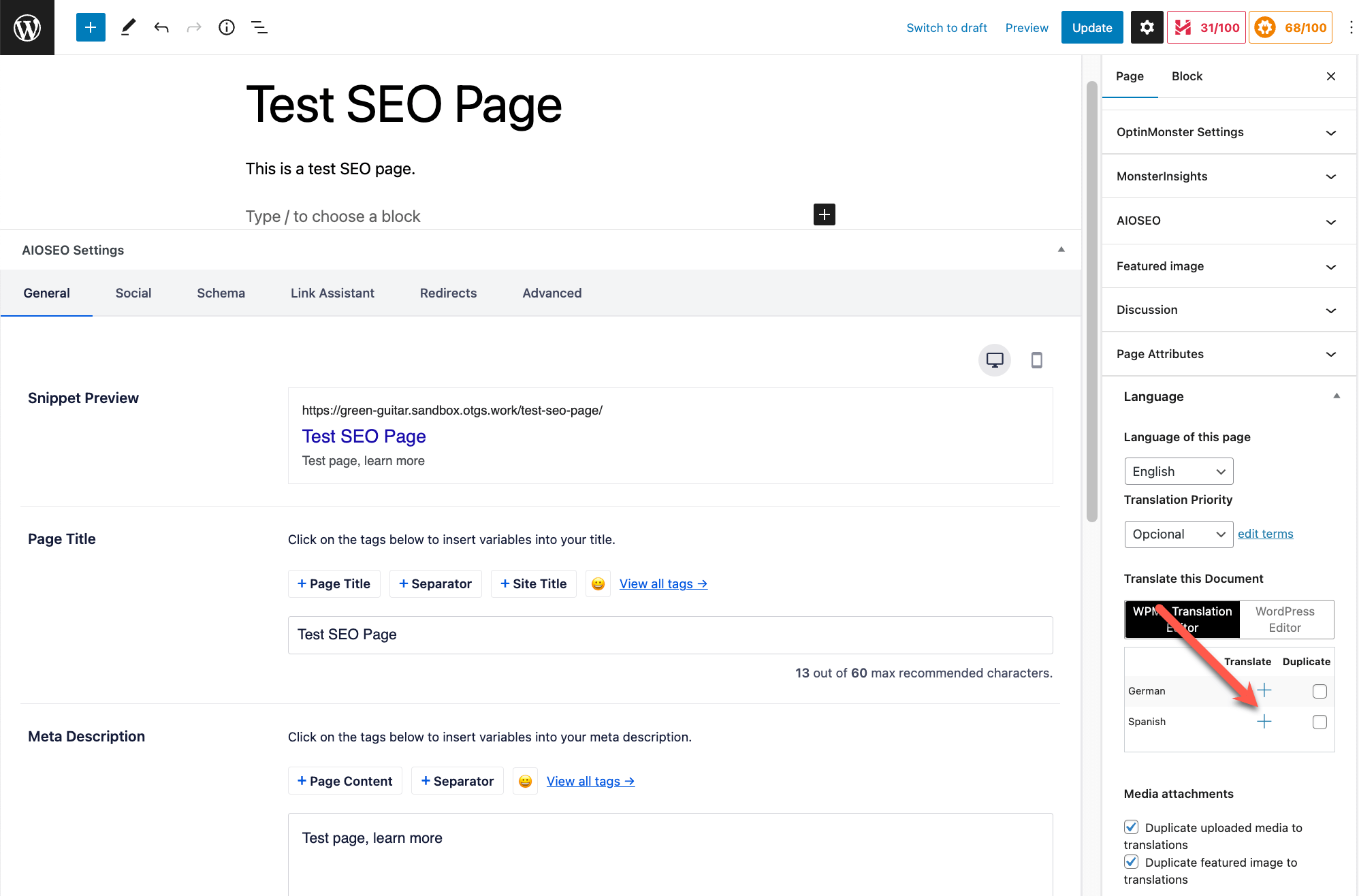
All in One SEO (often called AIOSEO) is a WordPress plugin that helps you manage on-page and technical SEO in one place. It lets you edit titles, meta descriptions, schema, sitemaps, and more. You can also set redirects, handle robots rules, and manage social previews.
People also use all in one seo as a phrase for a full-stack SEO setup. That means one system to plan, publish, fix issues, and track wins. The plugin matches that idea well, so it is a good fit for most WordPress sites.
If you want less time in code and more time on content, all in one seo gives you that balance.
Key Features and Why They Matter
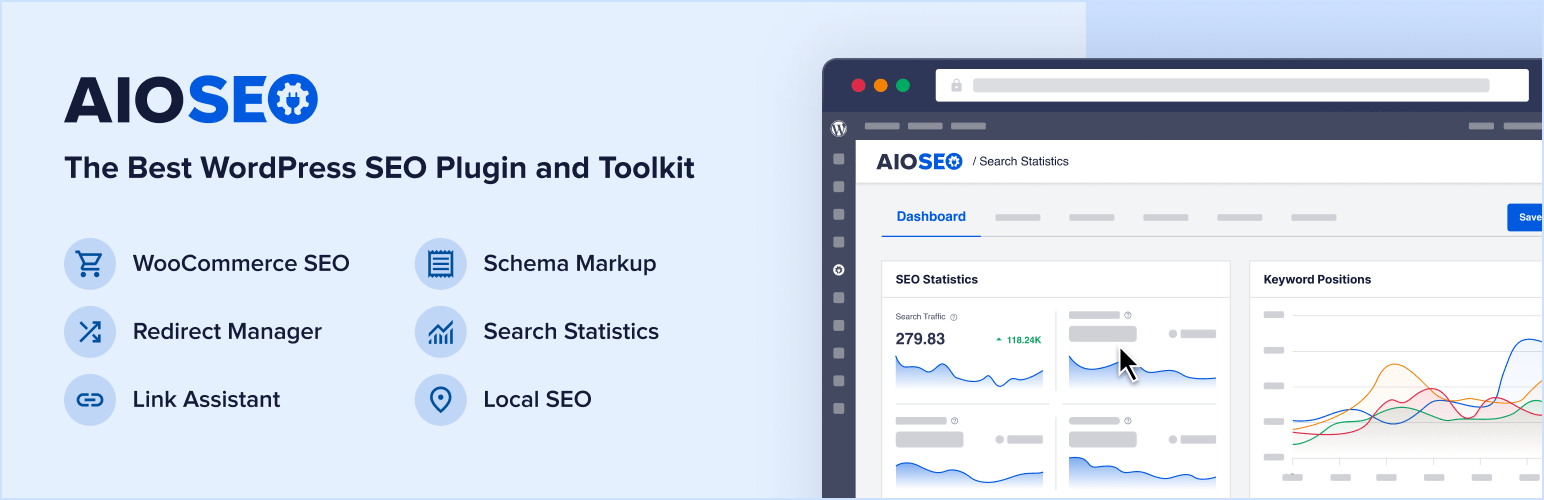
All in one seo brings many jobs under one roof. Here are the features you will use often and why they help.
- Search Appearance: Set global title and description templates. Keep brand names and dividers clear across posts and pages.
- TruSEO Analysis: Get real time checks on keyphrase use, length, and links. Use it to guide edits, not as a score to chase.
- XML and HTML Sitemaps: Auto-generate sitemaps for posts, pages, videos, and news. Help search engines find your content fast.
- Schema Markup: Add structured data for articles, products, local business, FAQs, and more. Rich results can lift click-through rate.
- Redirect Manager: Fix 404s with 301 redirects. Map old URLs to new paths after site changes.
- Robots.txt and .htaccess Editor: Control crawl and index rules without opening your server.
- Social Meta (Open Graph and Twitter Cards): Set images, titles, and descriptions for social shares.
- Image SEO: Fill alt text and title rules at scale. This helps both access and image search.
- Local SEO: Add NAP, open hours, and maps. Show up in local packs with clean data.
- WooCommerce SEO: Tidy product schema, breadcrumbs, and sitemaps for stores.
From my work on content hubs, the redirect manager and schema tools save the most time. They cut errors and raise trust with search engines.
Step-by-Step Setup Guide
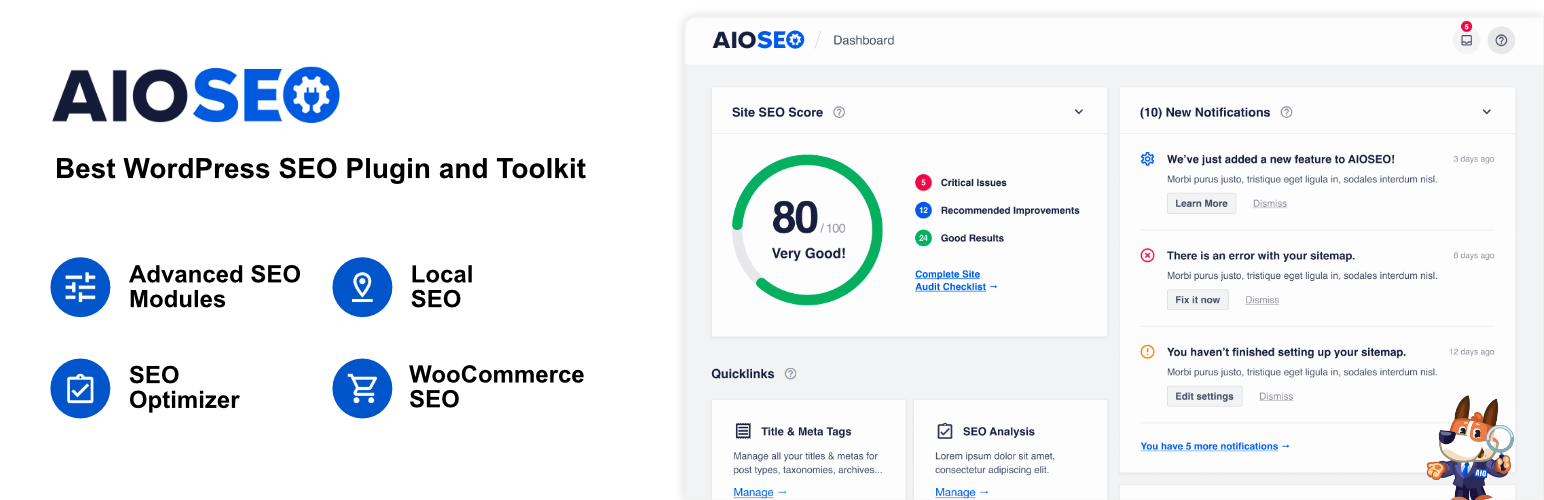
Follow these steps to set up all in one seo on a fresh or existing site.
- Install and activate: Search for All in One SEO in your WordPress plugins page. Activate it and run the setup wizard.
- Set your site type: Pick blog, news, portfolio, or store. This applies the right defaults.
- Connect Search Console: Verify your site to unlock reports and faster indexing feedback.
- Configure Search Appearance: Add a title format like Post Title | Brand. Write a default meta description that uses excerpt or a custom field.
- Build sitemaps: Enable XML and, if needed, video or news sitemaps. Exclude thin or private pages.
- Set up schema: Choose Organization or Person. Add your logo, social links, and default content schema.
- Create redirects: Import any old URL maps from a spreadsheet. Watch the 404 log for misses and fix them.
- Tidy robots rules: Allow key folders. Block admin and temp pages.
- Role access: Limit who can change index settings. This prevents mistakes on live pages.
- Test: Crawl your site with a simple spider tool. Check for broken links, redirect loops, and title tag issues.
Keep a change log. If traffic dips, you can roll back a change fast.
On-Page SEO With All in One SEO
On-page work is where you gain steady wins. Here is a simple flow that I use with all in one seo.
- Pick a focus keyphrase: Use terms that match search intent. Add a secondary term if it fits.
- Write a clear title: Put the key phrase early. Keep it under 60 characters.
- Draft a meta description: Aim for 140–155 characters. Promise value. Match the page’s intent.
- Use TruSEO checks: Fix basics like missing images, long sentences, and weak internal links.
- Add internal links: Point to one main page on the topic. Link from that hub to related posts.
- Insert schema: Use Article for blog posts, Product for items, and FAQ where it helps the reader.
- Preview social share: Set a strong image and short copy for Facebook and X.
A simple rule helps: one topic, one intent, one owner page. Use all in one seo to keep that rule clean and repeatable.

Technical SEO and Site Health
Good tech SEO lets your content shine. All in one seo handles key parts that many teams skip.
- Index controls: Set noindex on tag pages, search results, and test pages. Keep thin content out of the index.
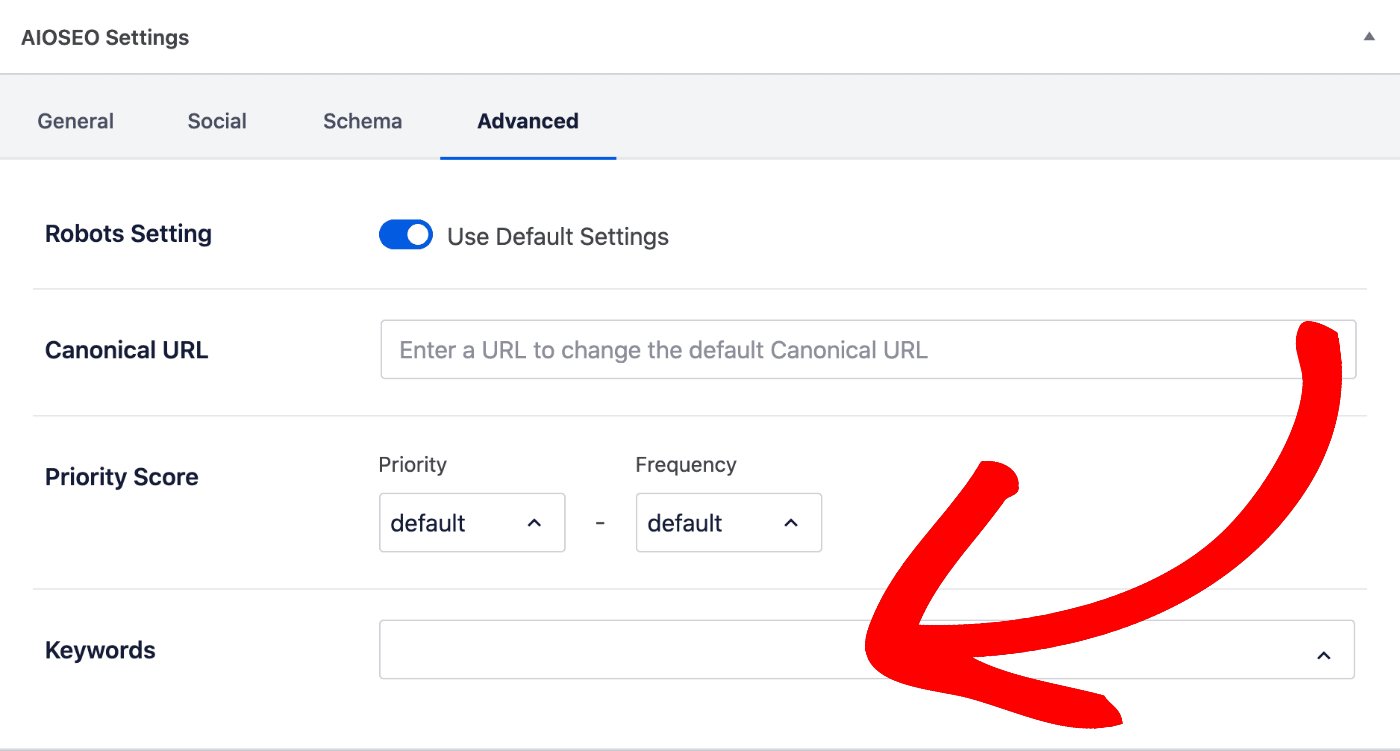
- Canonical URLs: Avoid duplicate issues from filters and tracking codes.
- Pagination: Add proper rel tags on archives for better crawl paths.
- Speed and Core Web Vitals: The plugin does not fix speed by itself. But it avoids heavy scripts and lets you keep metadata lean. Pair it with a cache and image compression plugin.
- 404 monitor: Watch for spikes. These often follow a redesign or CMS change.
- RSS content: Add attribution text to fight full-feed scrapers.
I once shipped a redesign without clean canonicals. Rankings dipped for two weeks. Switching canonicals on in all in one seo fixed it within days.
Schema Markup and Rich Results
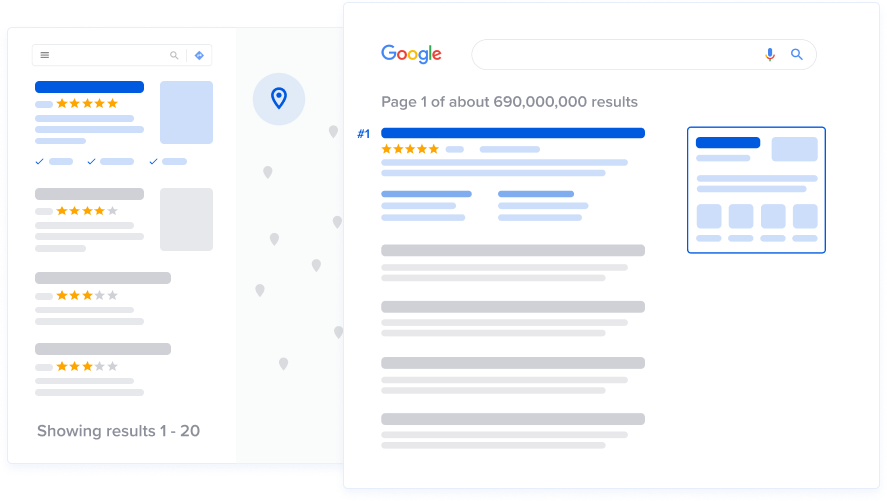
Schema helps search engines read your page like a data sheet. All in one seo adds this with simple fields.
- Global schema: Set Organization or Person at the site level. Add logo and IDs.
- Content schema: Choose Article, HowTo, FAQ, Product, Course, or Event per page. Fill required fields.
- Breadcrumbs: Add a breadcrumb trail to help both users and crawlers.
- Validation: Use a schema tester after each template change. Check for warnings.
With clear schema, I have seen higher click rates even when ranks did not move. The extra screen space draws the eye.
Local SEO, WooCommerce, and Integrations
If you run a local brand or a store, all in one seo can save weeks of custom work.
- Local SEO: Add NAP, geo coords, and hours. Create a location page per branch. Include a map and FAQs.
- WooCommerce: Set product schema, brand, SKU, and price. Tidy breadcrumbs for better paths.
- Multiple locations: Use location schema for each store. Link from the main locations hub.
- Integrations: Connect with Google Search Console and Analytics. Use plugin hooks for custom fields.
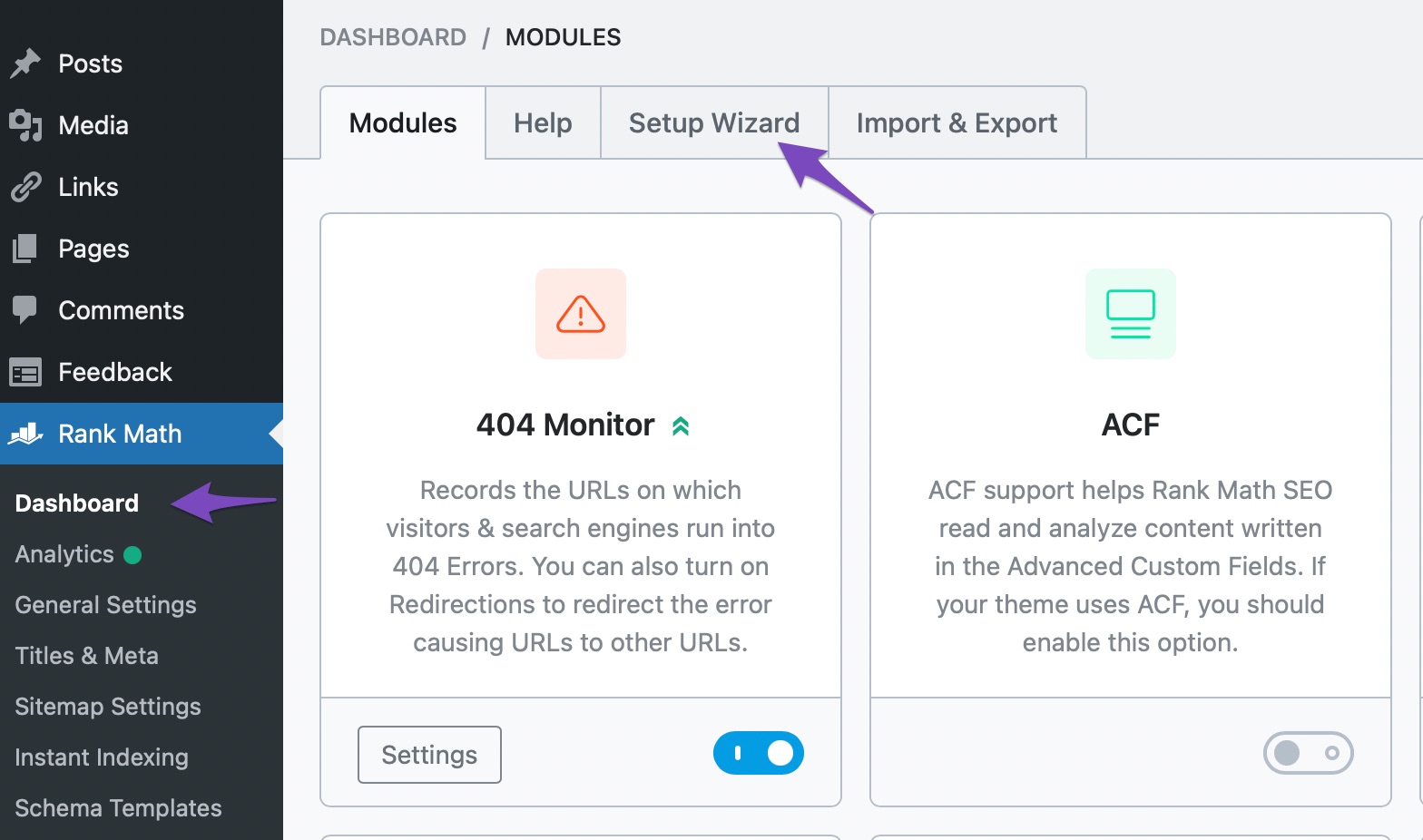
These tools help you show up in local packs and product carousels. That is where ready-to-buy users look first.
Reporting, Analytics, and KPIs
SEO wins need proof. Track what matters and keep the stack simple.
- Baselines: Record current clicks, impressions, and top pages in Search Console.
- KPIs: Watch organic clicks, non-brand traffic, and revenue or leads. Add scroll depth as a proxy for quality.
- Content map: Tag pages by topic and funnel stage. Measure per cluster, not only per page.
- Alerts: Set alerts for 404 spikes, sitemap errors, and sudden rank drops.
I build a monthly one-page report. It ties all in one seo changes to outcomes. This keeps stakeholders aligned and calm.

Mistakes to Avoid and Pro Tips
Learn from my bumps and save time.
- Do not index everything: Use noindex on thin pages, filters, and internal search.
- Avoid title tag churn: Do not rewrite titles weekly. Let data run for at least two weeks.
- Do not chase a 100 score: TruSEO is a guide. Serve the reader first.
- Keep redirects lean: Remove old 302s. Use 301 for permanent moves.
- Test before deploy: Staging first, then live. Crawl both.
- Document rules: Set a naming style for titles and slugs. Train your team.
Pro tip: Build a “SEO defaults” doc from your all in one seo settings. New writers will thank you.
Real-World Results: A Short Case Study
A B2B blog I manage had flat growth. We installed all in one seo, mapped redirects, added schema, and cleaned titles. We also built a hub for three core topics and linked out to spokes.
Within eight weeks, organic clicks rose by about 28%. The biggest lift came from rich results on FAQs and better internal links. Your results will vary, but the process is sound and repeatable.
Pricing, Alternatives, and When Not to Use It
All in one seo has a free tier and paid plans. The free version covers the basics. Paid plans add redirects, local SEO, video sitemaps, and more.
Good alternatives include Rank Math, Yoast SEO, and SEOPress. Each has strengths. Pick the one your team understands and will maintain.
When not to use all in one seo? If your site is headless or not on WordPress, you need other tools. If your team will not follow process, no plugin will save the day.
Frequently Asked Questions of all in one seo
What is all in one seo used for?
All in one seo helps manage on-page and technical SEO inside WordPress. It covers titles, schema, sitemaps, redirects, and social meta.
Is all in one seo free?
Yes, there is a free version with core features. A paid plan adds advanced tools like redirects, local SEO, and video sitemaps.
Does all in one seo improve rankings by itself?
No plugin can promise rankings. It gives you the tools to implement best practices that support growth.
How does all in one seo handle schema?
It lets you set global and per-page schema types with simple fields. This helps you qualify for rich results.
Can I switch to all in one seo from another plugin?
Yes. Use the import tool to bring in titles, meta, and some settings. Test after the switch to avoid gaps.
Will all in one seo slow down my site?
It is light for what it offers. Keep only needed modules on, and pair it with caching for best speed.
Conclusion
All in one seo brings the core parts of SEO into a simple workflow. It helps you set clean titles, add schema, build sitemaps, fix 404s, and guide writers with clear rules. The result is less chaos and more focused growth.
Start with a solid setup, ship better pages each week, and track what moves the needle. If this guide helped, subscribe for more hands-on SEO playbooks or leave a question so I can help you apply this on your site.
Leave a Reply