
For inmotion hosting log in, use AMP, cPanel, Webmail, or WordPress with 2FA enabled.
If you need a smooth, secure, and reliable way to access your hosting tools, you are in the right place. I have managed many sites on InMotion and understand how the inmotion hosting log in works across AMP, cPanel, Webmail, and WordPress. This guide shows each login path, common errors, and real fixes that work in the field. Read on to master inmotion hosting log in like a pro.

Understand Your InMotion Hosting Login Options
InMotion offers more than one place to sign in. Each portal serves a different job. Knowing which one you need saves time and avoids errors with inmotion hosting log in.
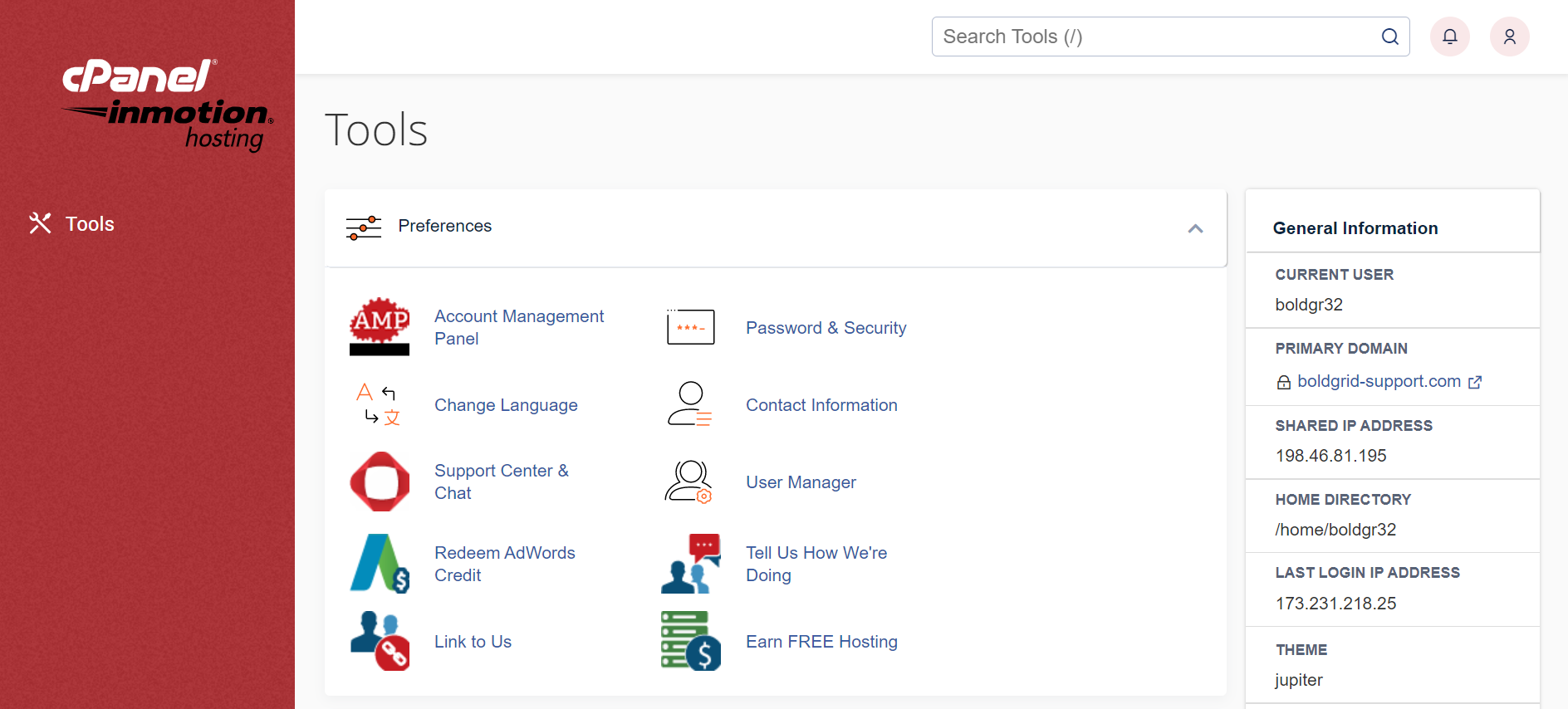
- AMP (Account Management Panel) lets you manage billing, plans, domains, and support.
- cPanel lets you control files, databases, email accounts, and backups.
- WHM is for reseller or VPS plans to manage multiple cPanels.
- Webmail gives you browser access to your email inbox.
- WordPress Admin lets you edit your site, plugins, and themes.
Key URLs you will use for inmotion hosting log in:
- AMP: https://secure1.inmotionhosting.com
- cPanel: https://yourdomain.com/cpanel or https://serverhostname:2083
- WHM: https://serverhostname:2087
- Webmail: https://yourdomain.com/webmail
- WordPress: https://yourdomain.com/wp-admin
If DNS is new or not pointed yet, use your server hostname instead of the domain. This avoids timeouts during propagation and helps stabilize your inmotion hosting log in.
Step-by-Step: inmotion hosting log in For Every Portal
Use these simple steps for a clean and secure start. Bookmark the pages you use daily. It keeps your workflow fast and reduces login stress.
AMP login
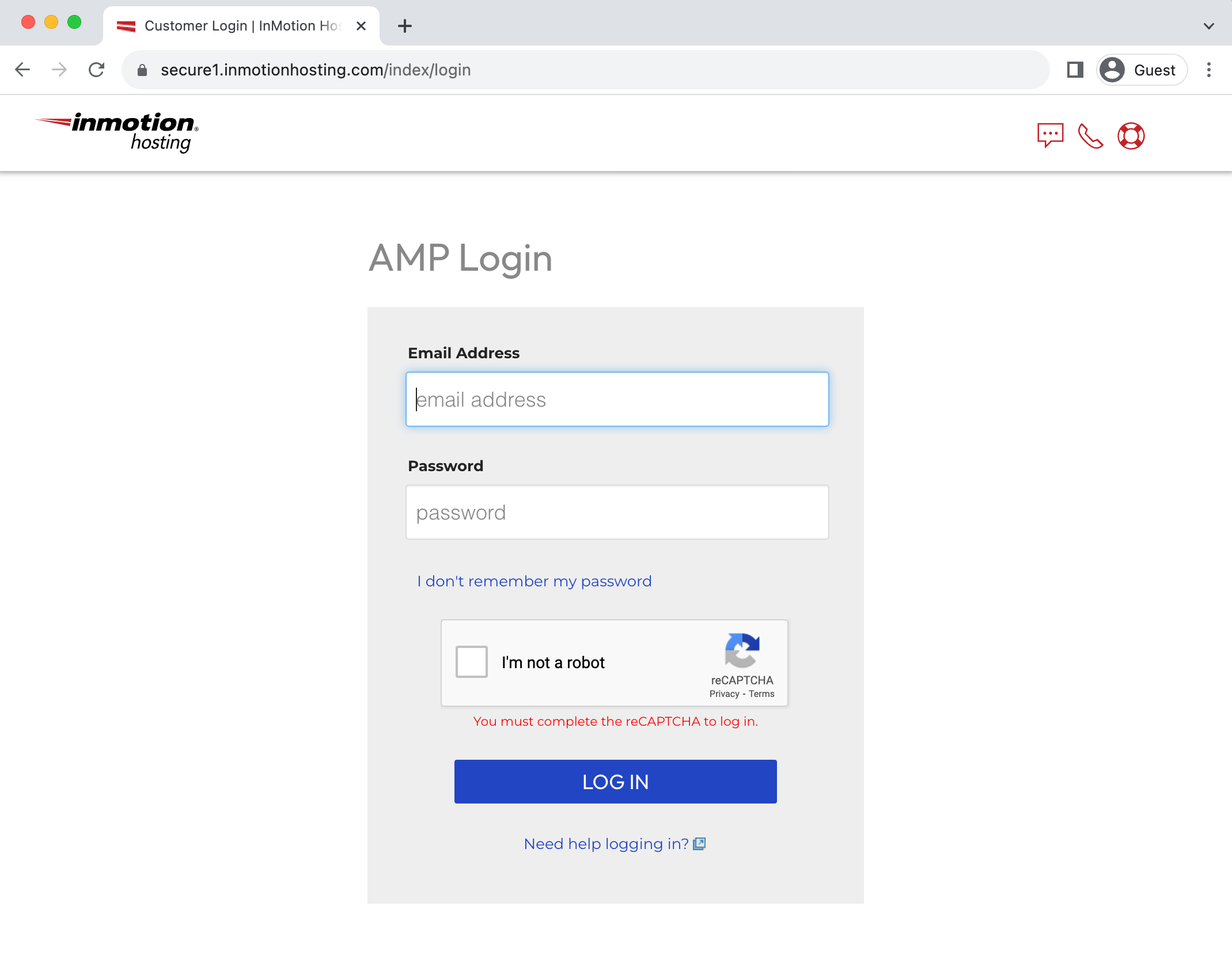
- Go to https://secure1.inmotionhosting.com.
- Enter your email and AMP password.
- Complete 2FA if enabled. Click Log In.
cPanel login
- Visit https://yourdomain.com/cpanel.
- Enter your cPanel username and password from your welcome email.
- If SSL warns, switch to https and use the server hostname to proceed.
Webmail login
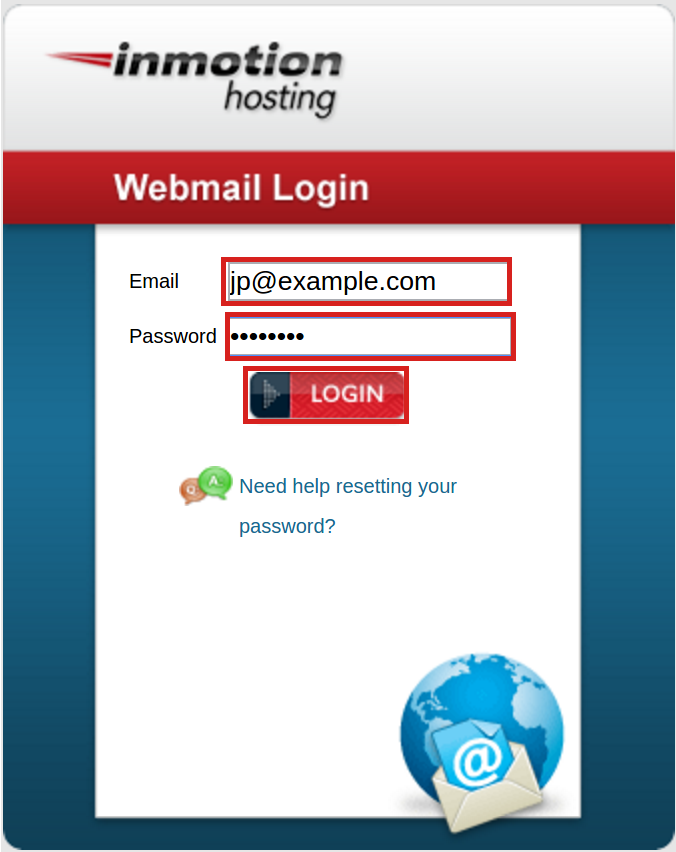
- Open https://yourdomain.com/webmail.
- Use your full email address and its password.
- Pick your preferred webmail app and set it as default.
WordPress Admin login
- Go to https://yourdomain.com/wp-admin.
- Enter your WordPress user and password.
- Use your 2FA app if set. Save the login URL in your password manager.
WHM login (for VPS or reseller)
- Browse to https://serverhostname:2087.
- Enter your root or reseller user and password.
- Restrict access by IP where possible for safer inmotion hosting log in.
Personal tip: I keep AMP, cPanel, and Webmail in one browser folder. This one change cut my average inmotion hosting log in time in half and reduced lockouts.

Troubleshooting Common inmotion hosting log in Issues
Login problems happen, even to careful users. Use these field-tested checks. They fix most cases fast and prevent repeat errors with inmotion hosting log in.
- Wrong portal: Make sure you are logging into the right place. AMP, cPanel, and WordPress use different credentials.
- Password issues: Reset from the correct page. AMP resets do not change cPanel or WordPress passwords.
- Browser cache: Clear cookies for the domain or use a private window.
- 2FA mismatch: Check device time sync for TOTP codes. A small time drift can cause failures.
- IP block: Too many failed attempts can block your IP. Try a mobile hotspot to confirm. Then contact support to remove the block.
- DNS or SSL: If new DNS, use the server hostname for cPanel, WHM, or Webmail. This helps steady your inmotion hosting log in.
- cPHulk or firewall rules: On VPS, review security settings after regaining access. Whitelist your office IPs to reduce lockouts.
If none of these work, open a support ticket from AMP chat. Share your IP, the exact error text, and the time of the attempt. Clear details help the team resolve your inmotion hosting log in fast.
Security Best Practices For a Safer inmotion hosting log in
A secure login protects your sites, data, and brand. Small habits make a big impact. Use these today to harden your inmotion hosting log in.
- Turn on 2FA in AMP, WordPress, and any supported panels.
- Use a password manager. Create long, unique passwords for each portal.
- Limit admin users. Give the least access needed for the job.
- Change default usernames in WordPress. Avoid admin as a username.
- Enable login alerts where possible. Watch for unusual locations.
- Use SSH keys for server access. Disable password SSH login on VPS when ready.
- Keep devices patched. Updates reduce exploit risk at login.
- Review access logs weekly. Spot brute-force attempts early.
From my own work, the biggest win was standardizing 2FA across all client sites. It cut support tickets for inmotion hosting log in issues and stopped most brute-force noise.

What You Can Do After a Successful inmotion hosting log in
Once inside, get value fast. A focused checklist helps you work with intent and reduces errors that affect uptime and SEO.
High-impact tasks right after AMP or cPanel login:
- Check disk and inode usage to avoid mail and backup failures.
- Review AutoSSL status for all domains. Renew or fix where needed.
- Set daily or weekly backups. Test a restore on a staging subdomain.
- Update PHP to a stable version that your CMS supports.
- Turn on caching and optimize images to improve Core Web Vitals.
- Verify contact email in AMP so you never miss key alerts.
These habits make every inmotion hosting log in count. They keep your site stable and fast, which helps rankings and user trust.

Real-World Tips From an Admin Who Logs In Daily
I have handled migrations, audits, and speed fixes on many InMotion servers. These small moves saved me hours and kept clients happy during inmotion hosting log in and routine work.
- Keep a secure note with server hostnames and ports. Copy-paste avoids typos.
- Name users with a clear pattern. You will thank yourself months later.
- Stage before changes. Test updates on staging, then push live with care.
- Add a second admin. You need a backup account for emergencies.
- Set calendar reminders for SSL, renewals, and backups. Simple beats sorry.
One time, a client lost access due to an expired domain. We used the server hostname to reach cPanel, backed up the site, and moved DNS. That quick pivot only worked because our inmotion hosting log in data was clean and ready.

Mobile And Remote Access For inmotion hosting log in
You will need to log in on the go. Plan for it. A few steps make remote access safe and smooth.
- Use mobile browsers with autofill from a password manager.
- Keep your 2FA app on a backed-up device. Add a recovery method.
- Avoid public Wi-Fi. If you must, use a trusted VPN.
- Save AMP and cPanel URLs as favorites on mobile. This speeds up inmotion hosting log in when time is tight.
- Log out after quick tasks. Do not leave sessions open.
These habits keep you safe without slowing you down.
Speed And SEO Checks Right After inmotion hosting log in
Site speed and uptime are part of SEO. Use your login window to lock them in. Fast, stable sites rank and convert better.
- Confirm uptime and resource usage in cPanel or your monitor tool.
- Update PHP and extensions to supported versions.
- Enable caching and compression at the server or plugin level.
- Clear error logs. Fix repeated warnings that slow pages.
- Verify SSL, redirects, and canonical rules to avoid duplicate index issues.
- Run a quick page speed check on a top URL. Tweak, then retest.
I run this mini-audit after every major change. It keeps outcomes steady and makes each inmotion hosting log in a chance to improve results.
Frequently Asked Questions of inmotion hosting log in
Where do I find my AMP login details?
Your AMP email is the one used to buy hosting. If you forgot the password, use the AMP reset link and follow the email steps.
Why do my cPanel and AMP passwords differ?
They are separate systems by design. Change each one in its own panel to keep access clear and secure.
How do I access cPanel if my domain is not pointed yet?
Use the server hostname with port 2083. You can find the hostname in your welcome email or AMP.
Why does WordPress say my password is wrong after a move?
Migrations can change salts or users. Reset the password from wp-login or update it via phpMyAdmin if needed.
What if I get locked out after too many attempts?
Your IP may be blocked. Try a different network to confirm, then ask support to remove the block and review security rules.
Can I use 2FA across all portals?
Yes, you can use 2FA for AMP and WordPress. For cPanel and WHM, check your plan features or use IP controls and strong passwords.
Conclusion
Getting the inmotion hosting log in right is the start of a safe, fast, and stable site. Use the right portal, secure your access with 2FA, and follow a simple post-login checklist. These steps reduce risk and give you more control each day.
Put these tips to work on your next session. Start with 2FA, backups, and SSL checks. Want more help? Subscribe for deeper guides, or leave a comment with your specific login challenge.
Leave a Reply