
You cannot fully privatize a channel, but you can hide it or make videos private.
If you came here asking how to make my YouTube channel private, you are not alone. I manage channels for brands and creators, and I have guided many through this. In this guide, I will show simple, safe ways to hide your channel, lock down videos, and cut your footprint. You will learn all the steps, what to expect, and how to undo it later if you change your mind.

What “private” really means on YouTube
YouTube does not offer a single switch to make a channel private. But you can hide the channel and make all videos private. That meets the goal for most people.
Here is the core idea. Hiding your channel takes it out of public view. Setting videos to Private blocks anyone but the people you choose. If you want to learn how to make my youtube channel private, you will use both paths together.

Step-by-step: Hide your entire channel on desktop
This is the closest answer to how to make my youtube channel private. It hides your channel and all your content from the public. Your Google Account stays active.
Follow these steps on a computer browser:
- Sign in to YouTube with the channel you want to hide.
- Click your profile picture. Open YouTube Studio.
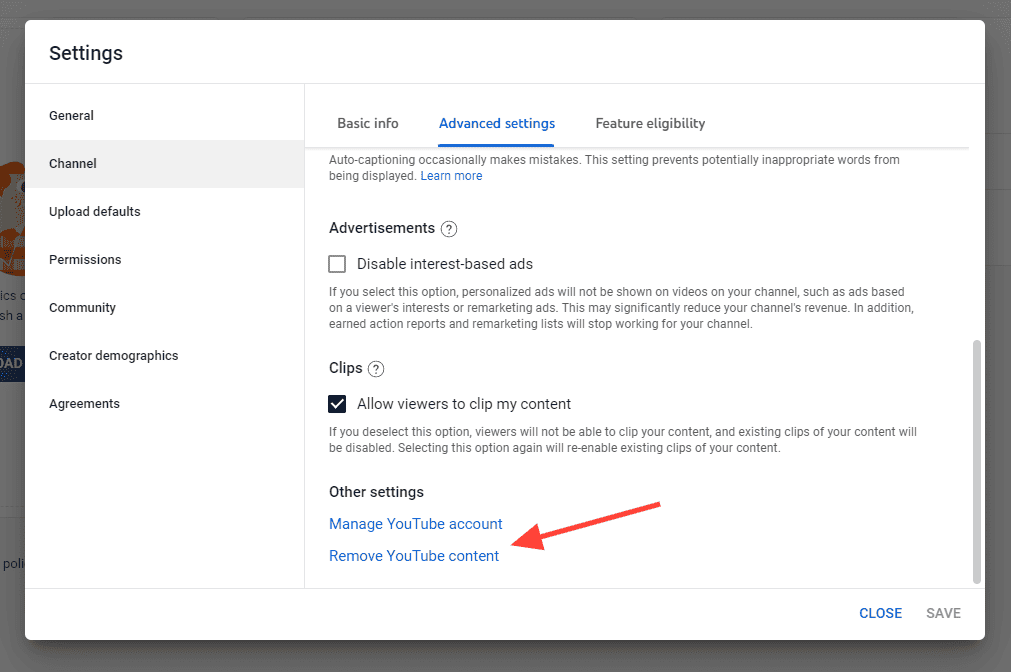
- Go to Settings. Open Channel. Open Advanced settings.
- Click Remove YouTube content. A new tab opens. Sign in again if asked.
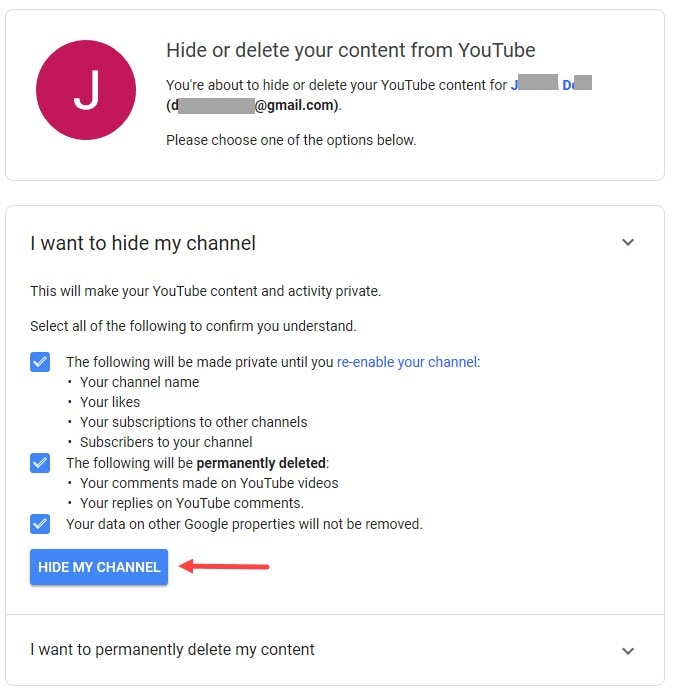
- Choose I want to hide my content. Check all boxes to confirm.
- Click Hide my content.
Notes from my work:
- This keeps your data. It does not delete it.
- You can come back later and make content public again.
- Some data like comments may be hidden or removed from public view.
This flow still fits the main aim behind how to make my youtube channel private. It is fast and safe for most channels.

Make all existing videos private in bulk
If you want control without hiding the whole channel, set every video to Private. This also serves people searching for how to make my youtube channel private but who want to keep the channel visible later.
Do this in YouTube Studio:
- Open YouTube Studio. Go to Content.
- Select Videos. Tick the box to select all on the page.
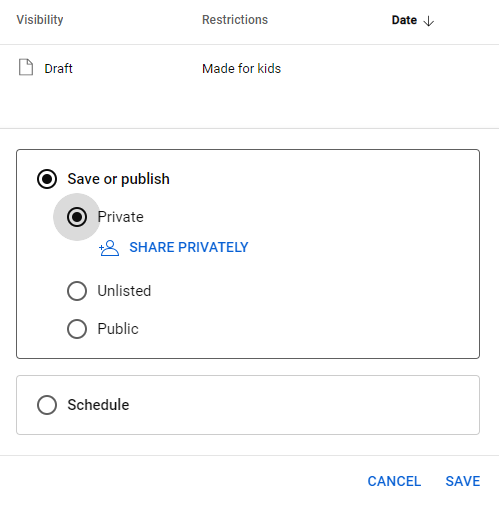
- Click Edit. Choose Visibility.
- Select Private. Apply to all selected videos.
- Repeat for more pages if you have many uploads.
Tips:
- Sort by visibility to find any public or unlisted videos left.
- Check Live tab if you have past live streams. Set those to Private too.
Set all new uploads to Private by default
You can stop future uploads from going public by mistake. This is key if you are mid-rebrand or a cleanup. It also helps if you plan how to make my youtube channel private over time.
Set the default in YouTube Studio:
- Go to Settings. Open Upload defaults.
- Open Advanced settings. Find Visibility.
- Choose Private. Click Save.
Now every new video will start as Private. You choose when to publish.
 practical options that work”
style=”max-width: 100%; height: auto; border: 2px solid black; border-radius: 10px; display: block; margin: 0 auto;”
loading=”lazy”
/>
Do it on a phone: practical options that work
You cannot hide your channel in the YouTube app. Use a mobile browser with Desktop mode or a computer. But you can set video visibility in the YouTube Studio app.
On mobile, use these paths:
- To hide a channel: Open a browser. Go to studio.youtube.com. Turn on Desktop site. Follow the desktop steps above.
- To set a video Private: Open the YouTube Studio app. Tap a video. Tap the pencil icon. Tap Visibility. Choose Private. Save.
This is the most common mobile flow I use with clients who ask how to make my youtube channel private while on the go.

Control who can see a Private video
Private means only people you choose can watch. You add viewers by email tied to their Google Account. You can invite a small set of people, often up to 50. YouTube may change this cap, so check current limits.
Share a Private video:
- In YouTube Studio, open the video.
- Click Visibility. Choose Private.
- Click Share privately. Enter the email addresses.
- Save changes. Tell viewers to check the same Google Account.
Use this for team reviews, client approvals, or family videos. It is a clean way to solve how to make my youtube channel private for select eyes only.
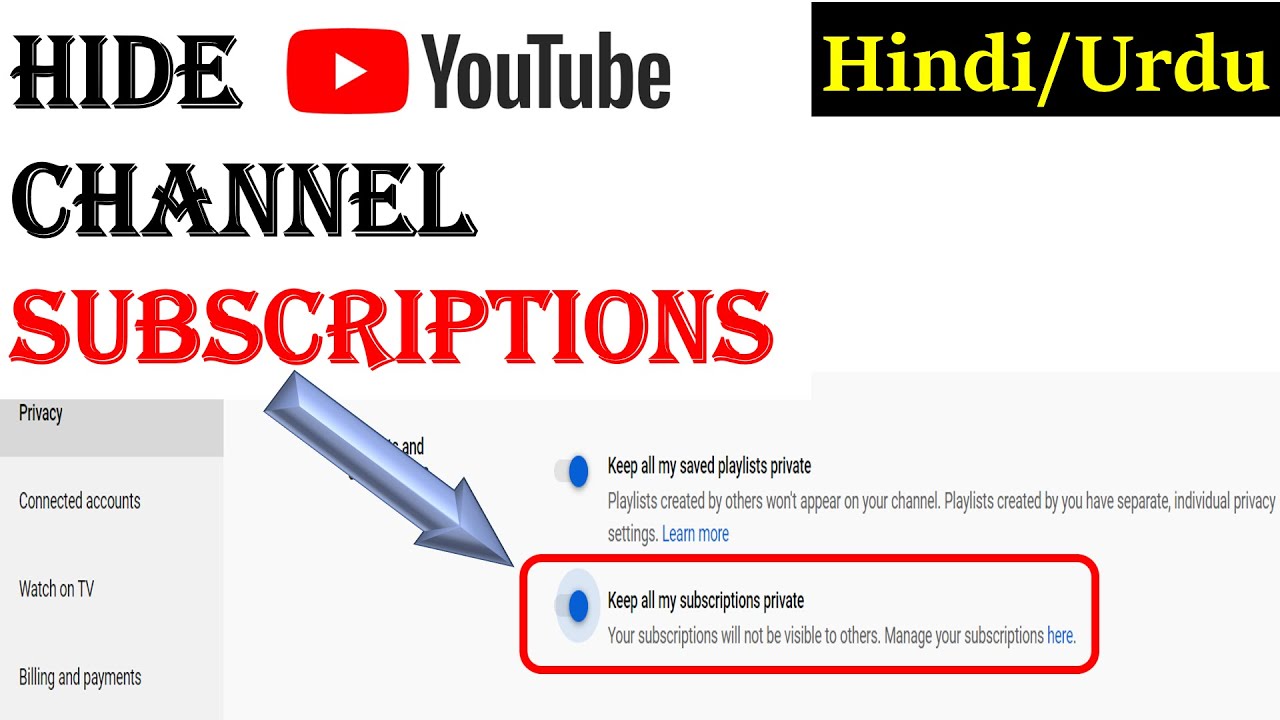
Hide your activity: subscriptions and playlists
To reduce what others can see, hide your subscriptions and saved playlists. This is a key part of how to make my youtube channel private in practice.
Do this on desktop:
- Click your profile picture. Open Settings.
- Open Privacy.
- Turn on Keep all my subscriptions private.
- Turn on Keep all my saved playlists private.
Extra tips:
- Remove channel links you no longer want to share.
- Hide liked videos if the option shows in your region.
Private vs Unlisted vs Members-only: what to choose
Many people ask how to make my youtube channel private when unlisted would be enough. Here is a quick view.
- Private: Only invited Google Accounts can watch. Not in search. Not shareable by link.
- Unlisted: Anyone with the link can watch. Not in search. Link can leak, so use with care.
- Members-only: Paywalled for paid members. Shows on your channel to members. Not the same as private.
Pick Private for tight control. Pick Unlisted for quick share with low risk items. Pick Members-only for paid perks.
Undo it: make your channel public again
Changed your mind after hiding the channel? You can bring it back. This also helps if you tested how to make my youtube channel private and now want to relaunch.
To restore:
- Sign in. Go to YouTube Studio.
- Upload defaults set as needed.
- For videos you want public, open Content.
- Select videos. Edit Visibility. Choose Public.
- Refresh your About info and links.
If you hid the channel itself, you may see prompts to restore publishing features. Follow them and wait for changes to apply.
Troubleshooting and mistakes to avoid
I have seen many small slip-ups while helping people with how to make my youtube channel private. Here are the big ones to avoid.
Common pitfalls:
- Assuming Unlisted is private. It is not. Links can spread.
- Forgetting Shorts, Live replays, or Community posts. Review all tabs.
- Skipping Upload defaults. A single Public upload can leak a rebrand.
- Not checking brand accounts. You may be on the wrong channel.
- Inviting the wrong email. Private access works only with the right Google Account.
Fixes that work:
- Bulk edit visibility again if any video slips.
- Clear cache and check in an incognito window to verify privacy.
- Use a second account to test what is visible.
Real-world use cases and pro tips
Here are patterns from my own work with clients who ask how to make my youtube channel private.
- Quiet rebrand: Hide the channel for two weeks. Update art, name, and handle. Set a relaunch date. Make a few key videos public on day one.
- Client review: Keep videos Private. Share with exact client emails. Use comments in Drive or a shared doc for notes. Publish only after approval.
- Family archive: Keep channel public but set all videos to Private. Invite only family Google Accounts.
Pro tips:
- Keep a simple checklist. Channel hidden or not. Upload defaults set. All old videos reviewed.
- Log every change. If views drop later, you can see what changed.
- Recheck privacy after YouTube product updates.
Frequently Asked Questions of how to make my youtube channel private
Can I make my YouTube channel fully private with one switch?
No. YouTube does not offer a single private channel toggle. You can hide the channel and set videos to Private to get the same result.
What happens when I hide my channel?
Your channel and videos are hidden from the public. Your Google Account stays active, and you can restore content later.
Is Unlisted the same as Private?
No. Unlisted videos are viewable by anyone with the link. Private videos are viewable only by people you invite with their Google Accounts.
How many people can watch a Private video I share?
You can invite a small list, often up to 50 people. Limits can change, so check the current limit inside YouTube Studio.
Can I make my channel private on mobile?
You can set videos to Private in the YouTube Studio app. To hide the entire channel, use a browser in Desktop mode or a computer.
Will hiding my channel delete my data?
No. Hiding does not delete your channel data. You can make content public again later.
How do I keep future uploads from going public?
Set upload defaults to Private in YouTube Studio. This stops accidental Public uploads.
Conclusion
You now know how to make my youtube channel private in practice. You can hide the whole channel, set all videos to Private, and lock down what others see. You also know how to reverse it, and how to avoid common mistakes.
Take 10 minutes today and run through the steps that fit your goal. Test with an incognito window to confirm your settings. If this helped, subscribe for more simple creator guides or leave a comment with your next question.
Leave a Reply